Particle FX Baking
Bake a Unity built-in particle system (Shuriken) — a burst, an impact, a muzzle flash — into a frame sequence and sprite sheet you can drop into a 2D game. Snap replays the effect deterministically with ParticleSystem.Simulate(), so the same input always produces the same frames, and reconstructs clean transparency for you.
This lives on the Particle FX tab, one of Snap's two Expert FX tabs (the other is VFX Graph Export). It's more involved than Your First Sprite — you're capturing motion over time, not one still — but the loop is the same: load, preview, export.
Prerequisites
A prefab that contains a built-in ParticleSystem (Shuriken). Any effect pack from the Asset Store works. If you're capturing a VFX Graph (VisualEffect) asset instead, that's the sibling tab — see VFX Graph Export.
What bakes well — and what doesn't
Baking flattens a 3D effect into a framed sprite, so it suits effects with a clear focal subject and a beginning/middle/end: bursts, explosions, impacts, projectiles, pickups, buffs, muzzle flashes. Continuous, screen-wide effects — rain, snow, fog, ambient energy fields, looping weather — bake poorly, because there's no contained burst to frame. That's an inherent limit of flattening, not a capture defect. Snap shows an in-panel warning when it detects a continuously-emitting looped effect, but you're the judge — preview and trim to taste.
Some effects won't convert at all
"Bakes poorly" is about suitability — but some effects are flat-out incompatible with 2D flattening, and no setting will rescue them. Anything that depends on the live 3D scene or render pipeline has nothing to flatten into a sprite: depth and parallax (a volumetric cloud collapses to a flat blob), refraction / distortion / heat-haze (there's no scene behind a sprite to bend), soft particles that fade against geometry, camera- or screen-space tricks, and looks that lean on scene lighting, shadows, or reflections. Particle artists build for a live engine, so some effects use techniques that simply have no 2D equivalent. Rule of thumb: if it doesn't already read as a flat sprite in the preview, it won't export as one. That's a limit of turning 3D into 2D, not a Snap bug — use the effects that read cleanly, or author a 2D-friendly variant.
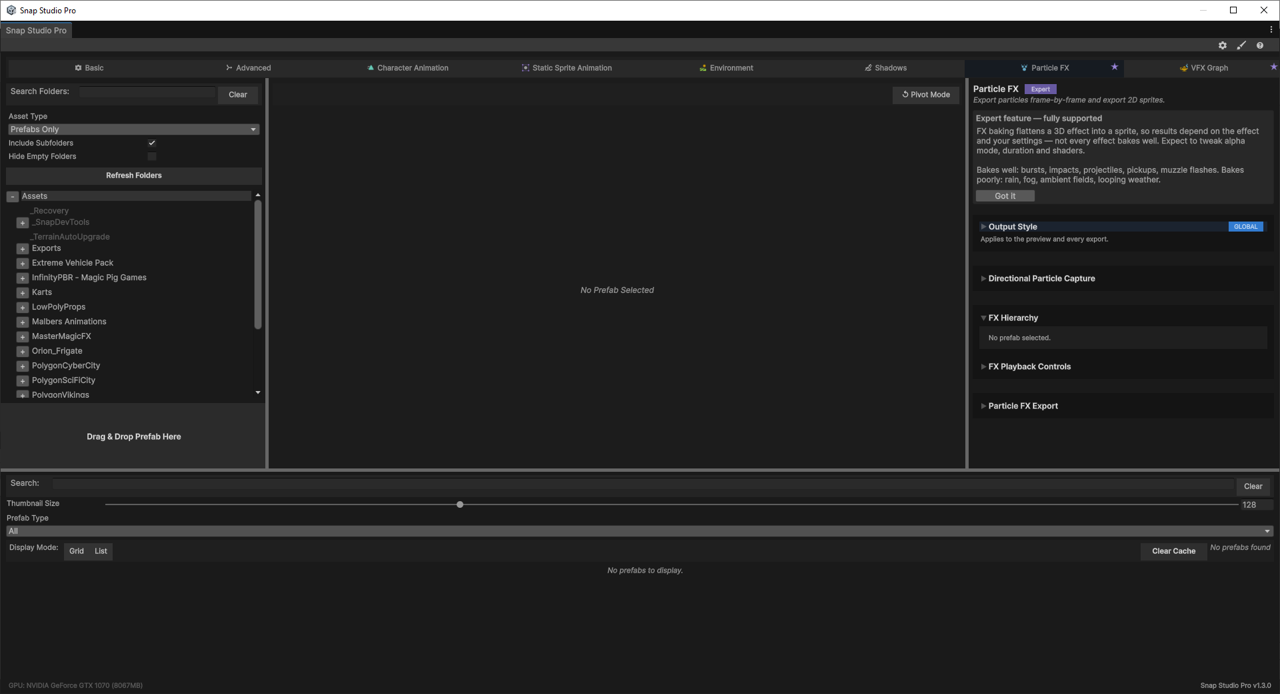
1. Open the Particle FX tab
Open Snap Studio Pro (Tools → Rev Gaming → Snap Studio Pro) and switch to the Particle FX tab.
2. Load a particle prefab
Drag a particle-system prefab into Snap the same way you would any prefab (drop zone on the Basic tab, or select it in the grid). Particle-only prefabs show a placeholder tile in the grid — a static thumbnail of an effect at rest is empty, so the tile stands in for it.
On selection, Snap primes the preview to a representative frame — roughly the effect's peak — so you see something immediately instead of an empty t=0 frame.
The export controls need a particle effect
The Particle FX Export section only enables for a prefab Snap recognises as particle-only. If it stays greyed out, the loaded prefab has no built-in ParticleSystem for this tab to capture.
3. Preview the effect
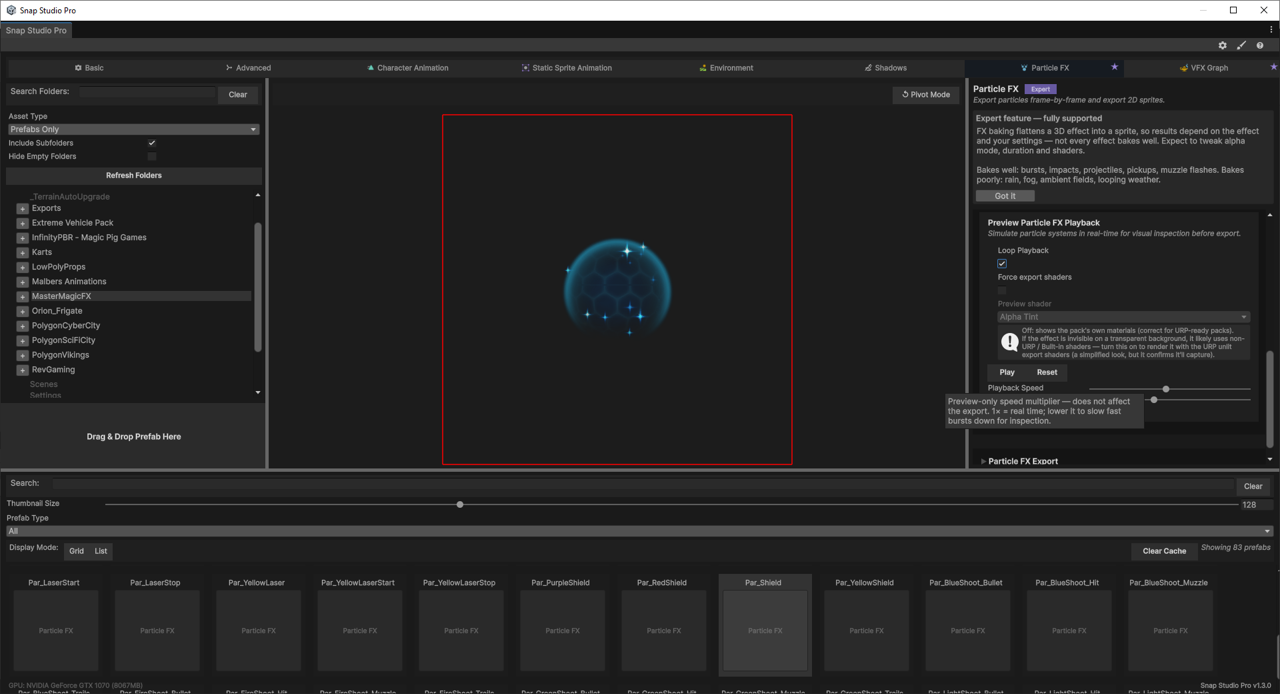
Open FX Playback Controls. Above it, a read-only hierarchy view lists the prefab's particle systems, their blend modes, and live particle counts.
- Play / Pause — run the simulation in the preview.
- Reset — return to frame 0.
- Loop Playback — repeat the preview when it reaches the end.
- Playback Speed — a
0.1×–2×multiplier to slow a fast burst down for inspection. This is preview-only — it does not affect export timing. - Preview Window (sec) — how far the Sim Time slider can scrub. Auto-scoped to the effect on selection; widen it to hunt for two frames far apart that match closely enough to cut a seamless 2D loop. Preview-only — the export duration is set separately (step 4).
- Sim Time — scrub to any moment within the preview window; the readout shows
Time: 0.00s / 1.50s.
Skip Warm-up Ramp — line the preview up with the export
Continuous emitters ramp up before they read well. Turn on Skip Warm-up Ramp and set its Warm-up Time (sec) so Sim Time 0 shows the effect's steady state instead of a cold t=0. Set this to the same value as the export's Warm-up (sec) (step 4) and the frames you scrub here are exactly the ones the export produces — which makes hunting for loop points reliable.
\"Force export shaders\" is a rescue lever, not the default
Leave Force export shaders off. Off, Snap captures the pack's own materials — what you see in the preview. Turn it on only if an effect renders invisibly on a transparent background — a sign it uses Built-in / non-URP shaders. On, Snap swaps to its URP unlit export shaders (AlphaTint or Additive) so the effect renders — but it's a simplified unlit look, not the pack's real one. It's a way to rescue a pack that otherwise wouldn't capture, not a quality setting.
4. Set duration, FPS, and timing
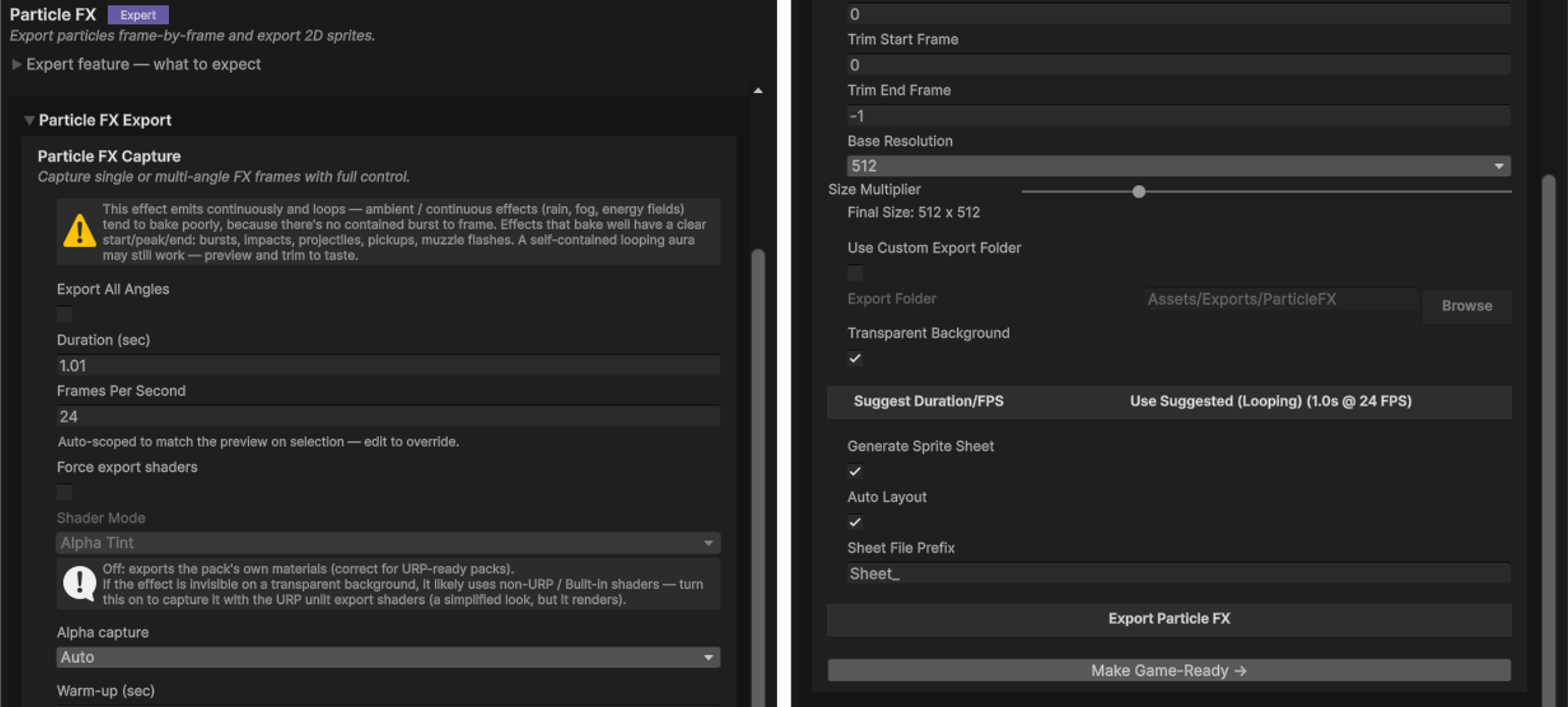
Open Particle FX Export. When you load an effect, Snap analyses it and auto-scopes Duration (sec) and Frames Per Second to match the preview — "Auto-scoped to match the preview on selection — edit to override." Both are editable; your edits stick until you load a different prefab.
Not sure what to use? Click Suggest Duration/FPS to run the analyzer on demand — it fills in a suggested duration, FPS, and effect type (and offers a one-click Use Suggested… button showing the values it picked).
For finer control over timing:
| Control | What it does |
|---|---|
| Warm-up (sec) | Advances the system this many seconds before frame 0, so continuous emitters reach a steady state before capture starts. |
| Trim Start Frame | First frame to export (0-based). |
| Trim End Frame | Last frame to export; -1 means "through the end". |
Looping a continuous effect
Two ways to get a seamless loop out of an effect that never returns to its start state — one automatic, one hands-on.
Auto-Detect Loop Point (let Snap do it). Tick Auto-Detect Loop Point and Snap scores every possible cut, trims to the pair of frames that match closest, and hides the small remaining seam with a short crossfade. It reports how clean the loop is — a low seam score means it's imperceptible. If the effect has no good loop it says so and falls back to your manual settings rather than forcing a bad cut.
Prefer to review before committing? Click Find Best Loop — it runs the same quick scan and just sets the Trim Start/End range (with the seam quality) without exporting, so you can eyeball or nudge the cut first.
Seamless Loop (Crossfade) (do it by hand). Tick Seamless Loop (Crossfade) to cross-dissolve the tail of the capture back into the head. The trade-off is honest: it softens motion near the seam and shortens the exported sequence by the overlap.
- Crossfade Overlap — how much of the clip to dissolve, as a fraction (
5%–50%). More overlap hides the seam better but softens more motion and removes more frames.
Ping-Pong Loop (bounce it). Tick Ping-Pong Loop to play the clip forward then backward on repeat. There's no cut, so the loop is always seamless — on any effect — but the motion reverses on the way back, so it only reads right for non-directional effects (shimmer, pulse, glow, flicker), not directional flow like rising smoke or a projectile. It's the guaranteed fallback for the loops the detector can't cut.
For the manual crossfade, pair it with the preview's Preview Window and Skip Warm-up Ramp (step 3) to find two frames that already match closely before you crossfade.
5. Recover transparency (Alpha capture)
Particle transparency doesn't survive a single naive render — additive glows fringe or vanish, soft edges pick up dark halos. Snap fixes this by rendering the same frame over black and white and reconstructing straight alpha from the pair.
The Alpha capture popup controls how:
| Mode | Use for |
|---|---|
| Auto (default) | Detects the blend mode from the pack's materials and picks the right reconstruction. Recommended. |
| None | Single transparent render (legacy). Fast, but additive / soft particles fringe or drop out. |
| Straight | Reconstruct alpha from black + white renders — alpha-blended particles. |
| Additive | Luminance-based alpha for glow / fire. |
Leave it on Auto unless you have a specific reason to override. The reconstruction adds render cost (it renders each frame twice), which is normal.
6. Choose size, format, and destination
- Export size — a base resolution with a size multiplier; the panel shows the resolved output dimensions.
- Transparent Background — on for sprites; off bakes a solid background in.
- Use Custom Export Folder — off by default (Snap writes to
Assets/Exports/ParticleFX). Tick it to type a path or Browse to one.
Keep the export folder inside Assets/
Unity can only import assets under Assets/. If a custom folder points outside it, the frames won't be imported as usable Sprites.
Frames are written as {prefab}_Frame_###.png. The capital Frame_ is deliberate — it lets Game-Ready Output pick the sequence up on case-sensitive filesystems.
7. Sprite sheet (optional)
Generate Sprite Sheet is on by default — after the frames are captured, Snap assembles them into a single sheet.
- Auto Layout — Snap picks the grid. Turn it off to set Frames Per Row yourself.
- Sheet File Prefix — the sheet filename prefix (default
Sheet_).
8. Export
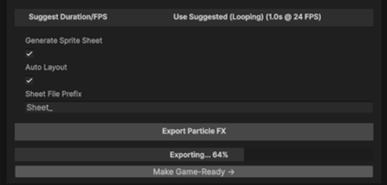
Click Export Particle FX. A progress bar runs while Snap simulates and captures each frame; your Frame_###.png sequence (and the sheet, if enabled) lands in the export folder, imported and ready to use. Make Game-Ready is right below the button when you want clips and a prefab instead of loose frames.
Multiple angles
Tick Export All Angles and pick an Orientation Preset to capture the effect from several directions at once (e.g. an 8-way top-down set). Each angle writes its own Angle_###/ subfolder. For the full directional workflow, see Directional Capture.
About looping
A few ways to land a clean loop, easiest first:
- Let Snap find it. Tick Auto-Detect Loop Point (step 4) and Snap scores every cut, trims to the best-matching frame pair, and cleans the seam with a short crossfade — reporting how good the loop is, so you're never guessing.
- Find a natural cut yourself. Turn on Skip Warm-up Ramp to start past the ramp-up, widen the Preview Window to scrub for two frames that match, then set Trim Start/End Frame to land on that cut. Check it with Loop Playback in the preview.
- Force a seamless loop. Tick Seamless Loop (Crossfade) (step 4) to dissolve the tail back into the head. It guarantees a seam-free loop at the cost of a little softened motion near the join.
- Bounce it. Tick Ping-Pong Loop (step 4) for a guaranteed seam-free loop on any effect — the clip plays forward then reverses. It only suits non-directional effects (motion runs backward on the return), but it never fails to loop, so it's the fallback for effects the detector can't cut.
Troubleshooting
The effect is invisible on a transparent background
The pack likely uses Built-in / non-URP shaders that don't render in Snap's URP preview. Turn on Force export shaders (step 3) to capture it with the URP unlit export shaders — a simplified look, but it renders.
Additive glow bakes as a black box / soft edges have dark halos
That's a transparency-recovery issue. Make sure Alpha capture is on Auto (step 5); for a stubborn glow effect, try Additive explicitly.
The captured effect looks empty or half-formed
A burst emits nothing at t=0. Raise Warm-up (sec) so the system reaches a steady state before frame 0, or scrub Sim Time in the preview to find where the effect actually reads, then set your trim range around it.
The editor hangs or the GPU crashes during a heavy export
Multi-angle and dual-background alpha renders are intensive, and on some GPUs (older NVIDIA cards especially) Unity's Direct3D12 backend can time out the device under that load. Direct3D11 is the most stable choice: Player Settings → Other Settings → Rendering → Graphics APIs for Windows → put Direct3D11 first → restart. Snap shows an in-panel tip when D3D12 is detected.
Next steps
- Want clips and a prefab, not loose frames? Game-Ready Output turns a
Frame_###.pngsequence into an AnimatorController, clips, and a drop-in prefab. - Capturing a GPU effect instead? VFX Graph Export does the same for Visual Effect Graph assets.
- Need a full multi-direction set? Directional Capture covers 4/8/16-direction exports in depth.
- New to Snap? Start with Your First Sprite for the core load-frame-export loop.