Game-Ready Output
Most Snap workflows hand you image files — clean PNGs you still have to wire up yourself: import them as sprites, build an AnimationClip, add an AnimatorController, drop it on a GameObject. Game-Ready output does that last mile for you. Point it at frames you already exported and it hands back engine-native, drop-in Unity assets: trimmed sprites, AnimationClips, an AnimatorController, and a prefab that plays the moment you drag it into a scene.
It builds one of two shapes, and picks which by reading the folder you select:
- Effect — a self-contained object: a fire, an explosion, a pickup, a spinning coin. One clip → one controller → one prefab.
- Character — one rig from many animations (idle, walk, attack, hit…). Every clip is wired into one controller and one prefab — the rig you plug into your own game logic.
Prerequisites
A folder of exported frames already in your project. Any capture tab that exports a frame sequence works — see Animation Export, Directional Capture, or even a single static sprite. Game-Ready reads and writes inside your project (under Assets/), so the frames need to be in the project already, not on some external path.
Loose PNGs vs. game-ready output
Here's the difference, side by side:
| A frame export gives you | Game-Ready output gives you |
|---|---|
A folder of Frame_###.png images | The same frames, trimmed to one tight, shared crop and imported as Sprites |
| Nothing playable | AnimationClip(s) at the FPS and loop setting you chose |
| — | An AnimatorController that plays them (an animation controller — not a character controller) |
| — | A prefab — a GameObject with a SpriteRenderer + Animator — that plays on drag-in |
The trim step matters: every frame is cropped to a single bounding box shared across the whole build, so the sprite never jitters or resizes frame-to-frame, and the pivot (bottom-centre by default) keeps a character's feet planted.
It's an animation controller, not a character controller
The generated AnimatorController is Unity's animation type — it plays the captured sprite animations. It is not a character/player controller: there's no input, movement, or gameplay logic in it, and — for a Character — no transitions between states. The prefab animates the moment you drop it in a scene; deciding when it walks, attacks, or turns is your game's job. Game-Ready gets you animation-ready, not playable-character-ready.
Two ways in
The "Make Game-Ready" buttons
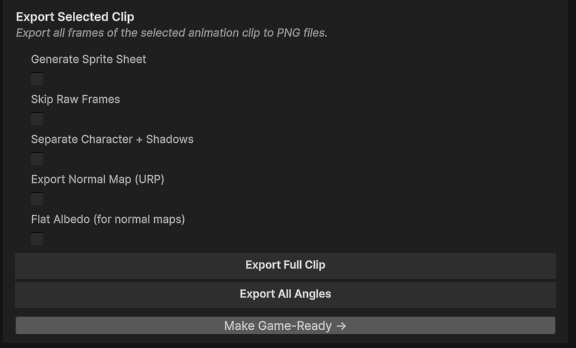
Wherever Snap exports a frame sequence — the Character Animation, Static Sprite Animation, Particle FX, and VFX Graph tabs — there's a Make Game-Ready → button right next to the export. It's the natural next step, surfaced where the export happens so you don't have to go looking for it.
Click it and Snap selects the folder you just exported to and opens the Game-Ready Exporter pointed straight at it.
The button only lights up for an in-project folder
Game-Ready reads and writes under Assets/, so the button is disabled until the export has produced a real folder inside your project. If you exported to a custom path outside Assets/, or haven't exported yet, the button greys out with a tooltip explaining why. Export into your project first.
The Game-Ready Exporter menu
You can also open it directly from the Unity menu bar:
Tools → Rev Gaming → Utilities → Snap Studio Pro → Game-Ready → Game-Ready Exporter
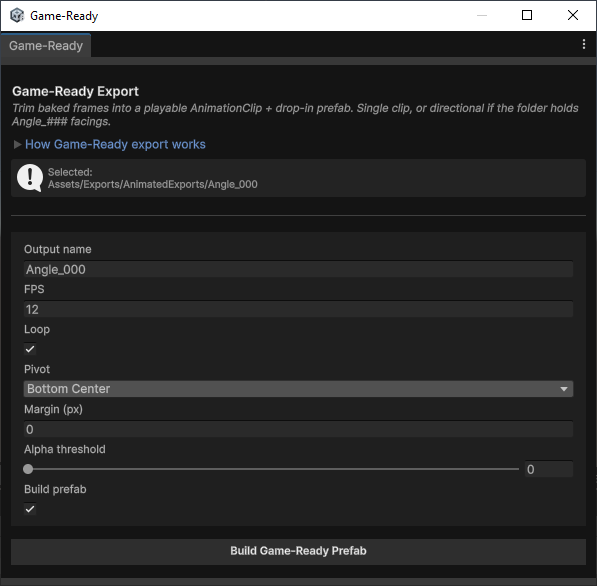
Then select the source folder in the Project window. The window shows the selected path — and the detected shape (Effect single, Effect directional, or Character) — in an info box, and defaults the output name to the folder's name.
Settings
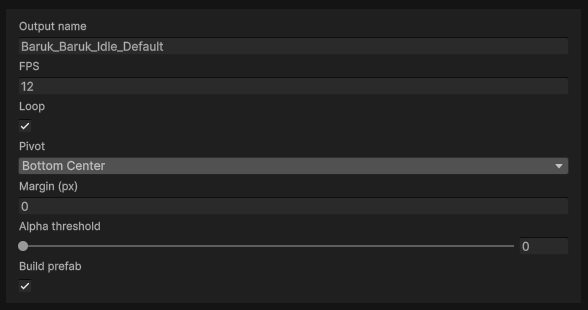
The window keeps the controls short — sensible defaults mean you can often just hit the build button:
| Setting | What it does |
|---|---|
| Output name | Name for the generated clip(s), controller, and prefab. Defaults to the folder name — for a Character, set it to the character's name (e.g. Baruk) so the assets read cleanly. |
| FPS | Playback frame rate of the generated clips (default 12). |
| Loop | Whether the clips loop. On by default. |
| Pivot | Anchor for the trimmed sprites. Bottom-Center by default — keeps feet planted. |
| Margin (px) | Transparent padding kept around the trim. |
| Alpha threshold | Pixels at or below this alpha count as empty when trimming (0–254). |
| Build prefab | Also generate the AnimatorController + drop-in prefab. On by default. |
Effect: a self-contained object
Point Game-Ready at one animation and you get an Effect — one clip, one controller, one prefab. Drag it in, press Play, it runs. Perfect for a fire, an explosion, a pickup, a projectile.
An Effect comes in two forms, auto-detected:
-
Single — a clip folder of
Frame_###.pngframes → one AnimationClip and a controller that plays it. -
Directional — a root of
Angle_000,Angle_045, … subfolders (exactly what Directional Capture produces for a single animation) → a clip per facing, all sharing one crop across every direction, wired into a direction-switching controller with an integerDirectionparameter:// Face the third direction (0-based, ascending angle order) animator.SetInteger("Direction", 2);The result summary in the window reports the facing count and the exact
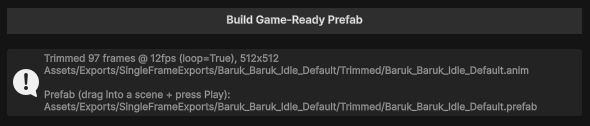
Directionrange for the prefab you just built.
Character: one rig, many animations
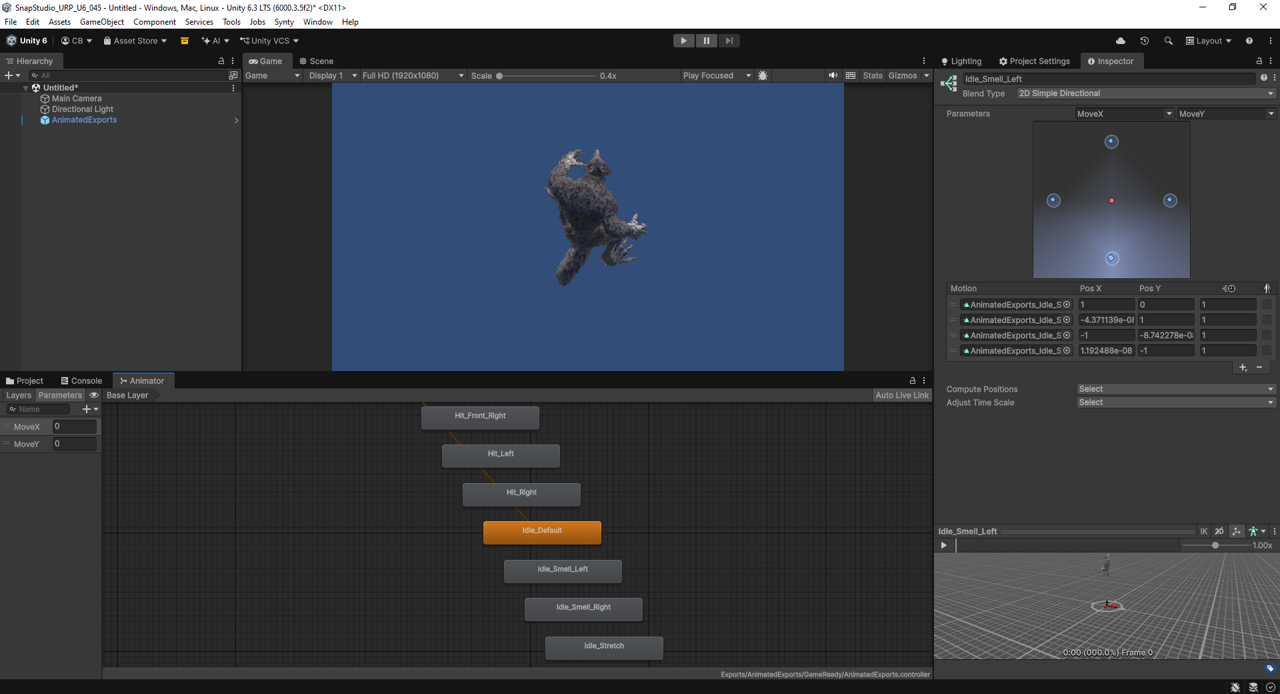
This is the big one. Point Game-Ready at a parent folder holding many animations and it builds a single character rig: every animation becomes a state in one AnimatorController, and everything is wrapped in one prefab.
The folder layout
Game-Ready reads the two layouts Snap's exports actually produce — you don't have to rearrange anything:
-
Angle-major (a directional character, straight from Directional Capture):
AnimatedExports/ ← select THIS Angle_000/ Idle_Default/ Walk/ Attack_Bite/ … (all animations) Angle_090/ Idle_Default/ Walk/ Attack_Bite/ … Angle_180/ … Angle_270/ … -
Animation-major (a non-directional character, or one you arranged by hand):
Hero/                     ← select THIS
  Idle/   Walk/   Run/   Jump/          (each a folder of frames,
                                         or its own Angle_### facings)
Either way, each animation's folder name becomes its state name. A prefix common to every animation (Snap's exports add one, e.g. Baruk_Baruk_) is stripped automatically, so states read as Idle_Default, Attack_Bite, Hit_Back — not the raw folder names.
What you get
- One state per animation in a single AnimatorController.
- Directional animations become a 2D blend tree on
MoveX/MoveY— feed your movement vector and the character faces the right way. The four/eight facings sit at the compass points, so it "just works" with a normalized input vector. - One shared crop across every animation and facing, so the character keeps a single size and pivot in every state (no pop when switching) and captured staging is preserved (a jump still reads as rising off the ground).
- A default state — an animation named
Idle(or containing "idle", likeIdle_Default) is set as the resting pose; otherwise the first animation. - One prefab, seeded with the idle sprite so it's visible before Play.
Driving it — this part is yours
The Character controller is deliberately just states + facing. It has no transitions and no gameplay parameters beyond the MoveX/MoveY the blend trees need. Two consequences:
- Facing works out of the box — set
MoveX/MoveYand the character turns within the current state. -
Switching state is your logic — nothing tells the Animator to leave idle for an attack. You author that: add transitions in the Animator, or drive it from a script.
void Update()
{
    // Face with your movement vector — blends within the current state
    animator.SetFloat("MoveX", move.x);
    animator.SetFloat("MoveY", move.y);

    // Switch state on your own terms
    if (Input.GetButtonDown("Fire1")) animator.Play("Attack_Bite");
}
Why Game-Ready doesn't wire the transitions
When idle becomes attack, whether a hit interrupts an attack, exit times, combo windows — those are your game's rules. If Snap guessed them you'd rip them out. So Game-Ready hands you a fully-wired, facing-ready rig and leaves the when to you. Surface the power; the driving is yours.
Where it lands
Everything is written back inside the source folder, imported as real Unity assets:
- Effect (single): a
Trimmedsubfolder of imported sprites, plus the.anim,.controller, and.prefabalongside. - Effect (directional): a
GameReadysubfolder holding a per-facingAngle_###folder of sprites and clips, with the shared controller and prefab at its root. - Character: a
GameReadysubfolder holding a folder per animation (each with its trimmed sprites and clip(s)), with the one controller and one prefab at its root.
Drag the prefab into a scene and press Play. An Effect runs; a Character rests in its idle state, faces with MoveX/MoveY, and plays whatever state your logic tells it to.
Exported normal maps or separated shadows too?
Two capture options write extra files alongside your colour frames, and this is where people get tripped up: Game-Ready builds the character and deliberately leaves those extras for you. Nothing is broken — they're separate deliverables, and the tool never folds them into the clip.
Normal maps ({name}_n.png)
Export Normal Map writes an _n.png sibling next to each colour frame (Hero_Frame_000.png → also Hero_Frame_000_n.png).
- Game-Ready ignores the
_n.pngfiles — it trims and clips the colour frames only, so your AnimationClip is never doubled or interleaved with normals. - The normal maps stay on disk — even with Skip Raw Frames on, Snap keeps them (they're a deliverable, not scratch frames to purge).
- Wiring them up is yours: assign the normals to a URP Sprite-Lit material for 2D dynamic lighting. Game-Ready hands you the animated colour sprite; the lit-material setup is a Unity step it doesn't guess for you.
Separated character + shadows (Character/ + Shadows/)
Separate Character + Shadows splits the export into two sets — …/Character/ (subject, no shadow) and …/Shadows/ (shadow, no subject), with any angle folders nesting beneath each.
- Game-Ready builds from
Character/— the character is the game-ready subject. It skips theShadows/folder, so shadow frames never leak into the character clip. - The
Shadows/set is left untouched for your own compositing — layer it under the sprite, use it as a blob-shadow texture, or ignore it in favour of a runtime shadow. It is not baked into the prefab.
Why the extras aren't in the prefab
A game-ready prefab is the character. Whether its shadow is a baked sprite, a runtime blob, or a real 2D light — and whether its normals drive dynamic lighting — are your rendering decisions. Snap exports the raw material and builds the character; how you light and ground it in your game is yours. Surface the power; the driving is yours.
Troubleshooting
The build button is greyed out
No valid folder is selected. Select a folder in the Project window — an Effect clip folder (Frame_###.png), an Angle_### directional root, or a Character parent whose subfolders are the animations.
I got one animation per direction, not my whole character
You pointed Game-Ready at a directional export as if it were a single Effect. A multi-animation directional export (angle folders that each contain many animation subfolders) is a Character — the info box will say so. Select the parent folder (the one containing Angle_000, Angle_090, …), not one angle folder, and it builds the full rig.
My character sits in idle and never does anything
That's expected — the controller has no transitions by design. Facing works (MoveX/MoveY); switching states is your logic. See Driving it above.
The state names are ugly / prefixed
Game-Ready strips the prefix common to all animations, but anything left is the folder name. Rename the source animation folders for cleaner state names, and set Output name to the character's name so the clips and prefab read right.
The trimmed sprite is cropped too tightly, or clips the edges
Raise Margin (px) to keep more padding, or lower the Alpha threshold so faint edge pixels aren't treated as empty when the crop is computed.
My character sinks into the floor / isn't grounded
That's the pivot. Bottom-Center keeps feet planted; if you changed it, switch it back and rebuild.
I exported normal maps but the prefab isn't dynamically lit
Expected — Game-Ready builds the colour clip and leaves the _n.png normals on disk. Assign them to a URP Sprite-Lit material yourself; the animation is done, the lit-material wiring is the Unity step Snap doesn't guess for you. See Exported normal maps or separated shadows too?
My shadow isn't in the game-ready prefab
By design. A separated export puts the shadow in a Shadows/ folder, and Game-Ready builds the character from Character/. The shadow set is yours to composite — a layered sprite, a blob shadow, or a runtime shadow. See Exported normal maps or separated shadows too?
Next steps
- Feeding it an animation? Animation Export produces the frame sequences Game-Ready trims into clips.
- Building a directional character? Directional Capture gives you the
Angle_###layout Game-Ready turns into a blend-tree Character. - Just want one still sprite? Capturing a Single Sprite is the simpler path — Game-Ready is for when you want it playable.