Directional Capture
Top-down and isometric games need a character seen from several directions — 4-way for a classic RPG, 8- or 16-way for smoother rotation, or a simple left/right pair for a side-scroller. Directional capture sweeps the camera around your prefab and writes one sprite per facing, each into its own Angle_### folder, ready to become a direction-switching character.
Prerequisites
A prefab loaded into the preview. For a static prop, work on the Static Sprite Animation tab. For a rigged character you also want to animate, directional capture lives on the Character Animation tab — see Animation Export. The angle controls are the same on both; this page describes them once.
Fastest path first: 4-way from the Basic tab
If all you need is four flat directions of a single pose, you don't need this tab at all. On the Basic tab's Quick Export, tick Export Multiple Angles — it captures the prefab from 0°, 90°, 180°, 270° in one click. See Capturing a Single Sprite. Come here when you want to choose the number of angles, use isometric pitch, or capture an animated clip across directions.
1. Open the Directional Capture Settings
On either the Character Animation or Static Sprite Animation tab, open the Directional Capture Settings foldout. This is where the shared angle controls live: the orientation preset, the camera pitch, a manual snap angle, and the pivot recenter.
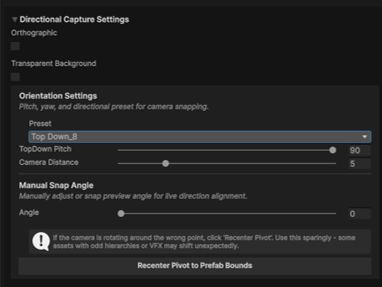
2. Choose how many angles
The Preset popup under Orientation Settings sets the number of directions:
| Preset | Directions | Good for |
|---|---|---|
| SideScroll | 2 | Side-scrollers — a front/back or left/right pair |
| TopDown_4 | 4 | Classic top-down RPGs, four-way movement |
| TopDown_8 | 8 | Smoother top-down / isometric rotation |
| TopDown_16 | 16 | Fine-grained rotation, twin-stick and shooters |
For SideScroll, a Side Scroll Orientation popup picks the base facing (FrontToBack or LeftToRight). For the TopDown presets, a TopDown Pitch slider (0°–90°) tilts the camera — drop it below 90° for an isometric look, keep it at 90° for a true bird's-eye view. Camera Distance frames how much of the prefab fills the shot.
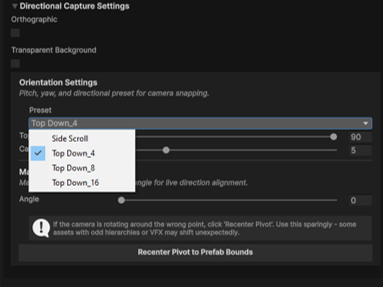
3. Preview the facings live
The preview updates the moment you change any of these controls, so you're always looking at a real facing. The Manual Snap Angle slider (Angle, 0°–360°) rotates the preview to a specific direction — and it snaps to the nearest valid step for the chosen preset, so a 4-way preset lands on 0/90/180/270 and an 8-way lands on the 45° steps. Drag it around the full circle to sanity-check every direction before committing to an export.
If the camera orbits the wrong point
Some prefabs — odd hierarchies, particle-heavy assets — pivot off-centre. Click Recenter Pivot to Prefab Bounds to re-anchor the orbit to the prefab's actual renderer bounds. Use it sparingly; the tool's own inline note warns that some assets can shift unexpectedly.
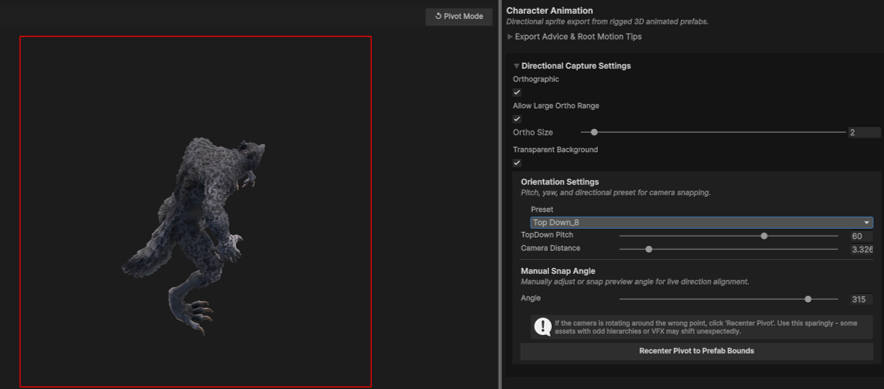
4. Export the angle set
How you fire the export depends on which tab you're on.
Static prop — Static Sprite Animation tab. In the Multi-Angle Export foldout, set Frame Count (the quick preset buttons offer 8 / 16 / 24 / 36 / 360), a Start Yaw / End Yaw range, and a resolution, then click Export Multi-Angle Sequence. Capture Mode decides whether the prefab rotates around its own centre (true directional sprites) or the camera orbits it (a showcase turntable), and Show Frame Preview lists the exact yaw of every frame before you commit. Tick Generate Sprite Sheet to also pack the frames.
By default this tab writes a flat Frame_### sequence — a turntable, in capture order. Tick Directional Layout (Angle_### folders) to write each frame into its own Angle_### folder instead, named for the yaw it was shot at, which is the layout Game-Ready Output reads. The option applies to Rotate Asset Around Centre only: an orbit turntable captures viewpoints of one pose rather than facings of the subject, so per-facing folders would be naming them something they aren't.
One sprite per direction
With Directional Layout on, each folder normally holds a single Frame_000. If your yaw range is narrow enough that several frames round to the same whole degree they share a folder, and Snap says so in the Console — widen the range or lower the frame count.
Animated character — Character Animation tab. In Single-Clip Export, click Export All Angles to run the selected clip once per facing, or use Batch Export (All Clips) to do it for every clip. Both honour the preset you set in step 2. See Animation Export for the clip and sheet options.
5. Read the output
Directional exports — the Character Animation tab's angle exports, and the Static Sprite Animation tab with Directional Layout ticked — write each facing into its own subfolder named Angle_###, where the number is the yaw in degrees, zero-padded to three digits. An 8-direction run, for example, produces:
Angle_000/   Angle_045/   Angle_090/   Angle_135/
Angle_180/   Angle_225/   Angle_270/   Angle_315/
Each folder holds that facing's sprite (a single frame for a static prop, or a Frame_###.png sequence for an animated clip). This Angle_### root is exactly what Game-Ready Output looks for — hand it that folder and it builds a direction-switching AnimatorController and a drop-in prefab, one clip per facing.
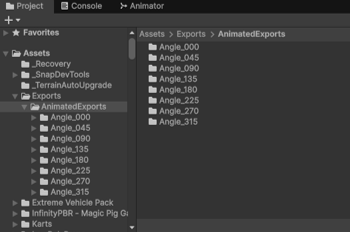
Angle_### folder per facing — the layout Game-Ready reads directly.Troubleshooting
The angles look mirrored or the wrong way round
Check Preset and, for SideScroll, Side Scroll Orientation — that sets the base facing everything else is measured from. Drag Manual Snap Angle through the full circle to confirm each direction before exporting.
The character swings off-centre as it rotates
The orbit pivot isn't on the prefab. Click Recenter Pivot to Prefab Bounds (step 3) to re-anchor it to the renderer bounds.
Frames clip at some angles but not others
A pose is wider from certain facings. Pull Camera Distance back a little, or on the Character Animation tab run Auto-Frame to Largest Pose so the framing fits the worst-case frame — see Animation Export.
Game-Ready doesn't see my directions
It looks for Angle_### subfolders under the folder you point it at. Point it at the export root that contains those folders, not at a single Angle_000 folder.
Next steps
- Turn the angle set into a character. Game-Ready Output reads an
Angle_###root and builds a direction-switching AnimatorController, clips, and a drop-in prefab. - Animating each facing. Animation Export covers Export All Angles and batch clip export in full.
- Only need a quick 4-way? The Export Multiple Angles toggle in Capturing a Single Sprite is the one-click shortcut.