Batch Exporting
Everything in the User Guide so far captures one prefab at a time. Batch export scales that up: point Snap at a whole set of prefabs and it captures every one of them with the same settings, one after another, while the Editor stays responsive. It's the difference between exporting an icon and exporting an entire icon set in a single click.
Prerequisites
A folder of prefabs in your project, loaded into Snap's prefab browser so they show in the grid. Batch export captures the prefabs currently shown in that grid, so use the browser's filter and search to narrow the set to exactly what you want first.
Two batch surfaces
Snap has two batch flows, on different tabs, for two different jobs:
| Tab | Panel | Best for |
|---|---|---|
| Advanced | Batch Icon Export | Many prefabs, one angle each — icon sets, inventory sprites, catalogue thumbnails |
| Static Sprite Animation | Batch Export | Many prefabs, multiple angles each — turnaround sets, directional source frames |
The single-angle icon path is deliberate: batch icon export captures every prefab from the one angle you've framed, keeping the whole set visually consistent. Multi-angle batch runs live on the static-sprite side, where directional output is expected. (Static props and scenery have their own dedicated flow — see Environment Extraction.)
Batch icon export (Advanced tab)
Open the Advanced tab and expand the Batch Icon Export foldout.
- Filter the grid to the prefabs you want. The panel shows a live count of how many prefabs currently match your filter — that's exactly the set that will export.
- Frame the angle. Batch icon export captures every prefab from the current preview rotation, so rotate the preview to the angle you want them all shot from before you run it.
- Set the export options (below).
- Click Apply Edits & Export.
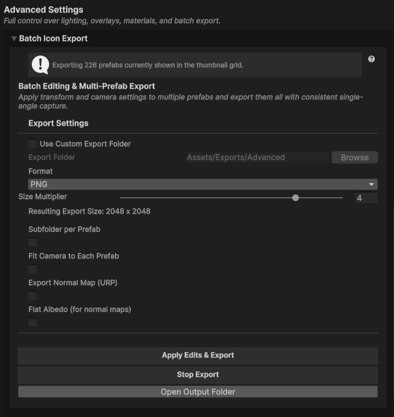
Export options
| Option | What it does |
|---|---|
| Use Custom Export Folder | Choose your own output folder (must be inside Assets/). Off = Snap's default advanced-export folder. |
| Format | Output file format — PNG, TGA, EXR, or JPG. |
| Size Multiplier | Scales the export resolution (1x = base). The Resulting Export Size readout shows the exact pixels you'll get. |
| Subfolder per Prefab | Writes each prefab's output into its own folder. |
| Fit Camera to Each Prefab | Refits the camera to each prefab's bounds before capture — consistent framing across differently sized prefabs. |
The export folder must be inside Assets/
As everywhere in Snap, a custom export folder has to live under your project's Assets/ folder or Unity can't import the results as usable sprites. Snap blocks an out-of-project folder with a reminder.
Multi-angle batch runs (Static Sprite Animation tab)
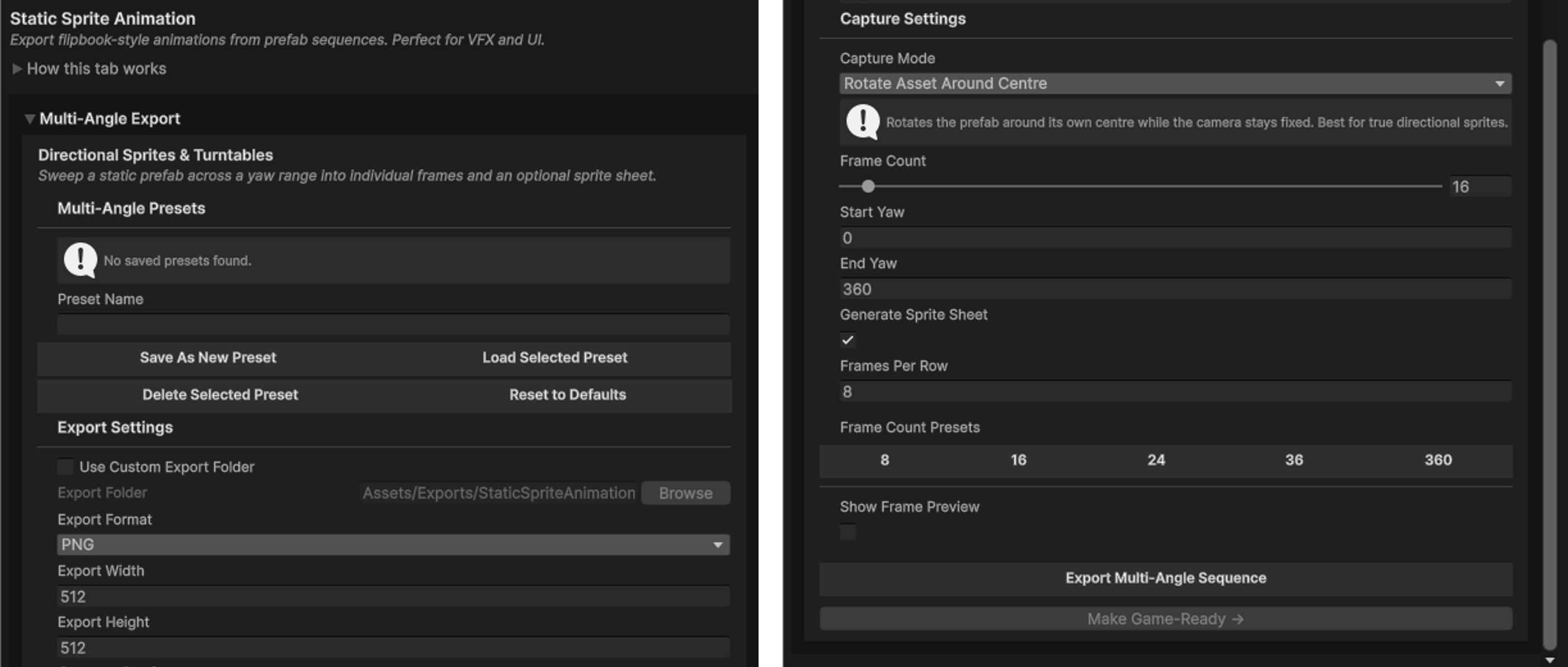
When you need each prefab from several angles — a turnaround, or the source frames for a directional set — use the Batch Export panel on the Static Sprite Animation tab. Enable Capture Multiple Angles and Snap will capture every prefab at every configured yaw:
- Auto-Distribute spreads a Number of Angles evenly around 360° (4 angles → 0°, 90°, 180°, 270°), or turn it off to type each yaw by hand.
- Use Current Preview Rotation As Base offsets those angles from the yaw you've framed, so the whole set orbits from your chosen starting facing.
This is the same capture engine as single-angle batch, just stepping through the angle list per prefab.
The Editor stays responsive
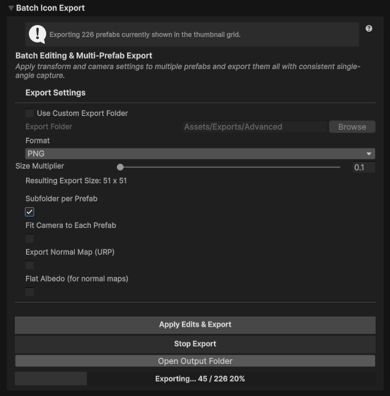
Batch export doesn't freeze Unity. Instead of blocking on a single long loop, Snap drives the run off the Editor's own update tick — it captures one prefab (and one angle) per frame, then yields control back. A progress bar tracks the run, and you can hit Stop Export at any point to halt cleanly between captures.
That means the Editor stays usable during a large batch — though, as with any capture, it's best to let it work without loading a different prefab mid-run.
Output organisation
By default every capture lands in the one export folder. Two toggles let you fan it out:
- Subfolder per Prefab — each prefab gets its own folder, named after the prefab.
- Multi-angle runs label each file by its angle (e.g.
Yaw_90_Pitch_0_Roll_0), so a prefab's angles stay grouped and identifiable even in a flat folder.
Everything is written under Assets/, so results import as Unity Sprites ready to use — or to feed straight into Game-Ready Output.
Troubleshooting
Export is disabled / nothing happens
No prefabs match your current filter or search — the panel says so and disables export. Widen the filter until the prefab count is above zero.
My prefabs came out at inconsistent framing
Differently sized prefabs framed from one camera will vary. Turn on Fit Camera to Each Prefab (icon export) or Smart Auto-Framing (static sprite) so each prefab is framed from its own bounds.
I need this to run unattended, or in CI
In-editor batch is interactive. For a fully scripted, headless run — from the command line or a build pipeline — use the Headless Capture API, which drives the same capture engine from a job file with no window open.
Next steps
- Want the output engine-ready, not loose files? Game-Ready Output turns a batch of frames into clips, controllers, and drop-in prefabs.
- Batching static props and scenery? Environment Extraction is the purpose-built flow, with world-scale sizing.
- Scripting or CI? Headless Capture API runs the whole thing without the Editor window.