Settings Profiles
You've dialled in a camera angle, a lighting rig, a background, and an export format you like. A settings profile is that whole configuration snapshotted to a portable .json — so you can carry it to another project, restore it after a reset, or hand it to a teammate and have them working from the same studio setup in one import.
A profile captures how the studio is set up, not the prefabs or the captures themselves. Think of it as your Snap workspace, boxed up.
Where it lives
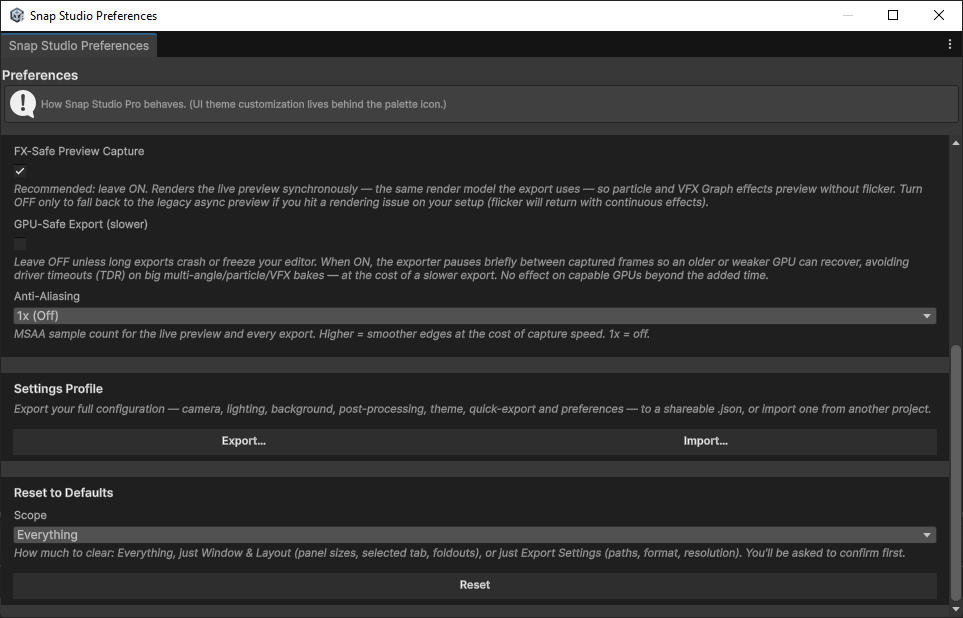
Profiles are exported and imported from the Preferences window — open Snap Studio Pro and click the gear icon in the window's top-right corner. The controls are under the Settings Profile card. See Preferences for the rest of that window.
What a profile captures
A profile is a snapshot of every shareable configuration domain. Internal state — onboarding flags, session paths, transient UI — is deliberately left out so the file is portable between projects and machines. The domains:
| Domain | What it carries |
|---|---|
| Camera | Camera configuration |
| Lighting | Studio lighting setup |
| Background | Background style and colours |
| Volume / post-processing | The global volume (URP/HDRP) or PPSv2 profile, tagged with the pipeline it was captured under |
| Theme | UI theme / palette |
| Export | Quick-export format, resolution index, custom width |
| Preferences | Behaviour toggles (hotkeys, allow-large-ortho) |
Each domain owns its own Capture() / Apply(); the profile just aggregates them. The file also stamps a schema version, so an incompatible or newer-than-supported profile is rejected on import rather than applied blindly.
Post-processing is pipeline-specific
The volume/post-processing section records which pipeline it was captured under (BuiltIn, URP, or HDRP). On import, that blob is applied only if it matches the current project's pipeline — a URP volume profile is meaningless in an HDRP project. When they don't match, the post-processing section is skipped (with a log line) and the rest of the profile still applies. See Render Pipeline Notes.
Exporting a profile
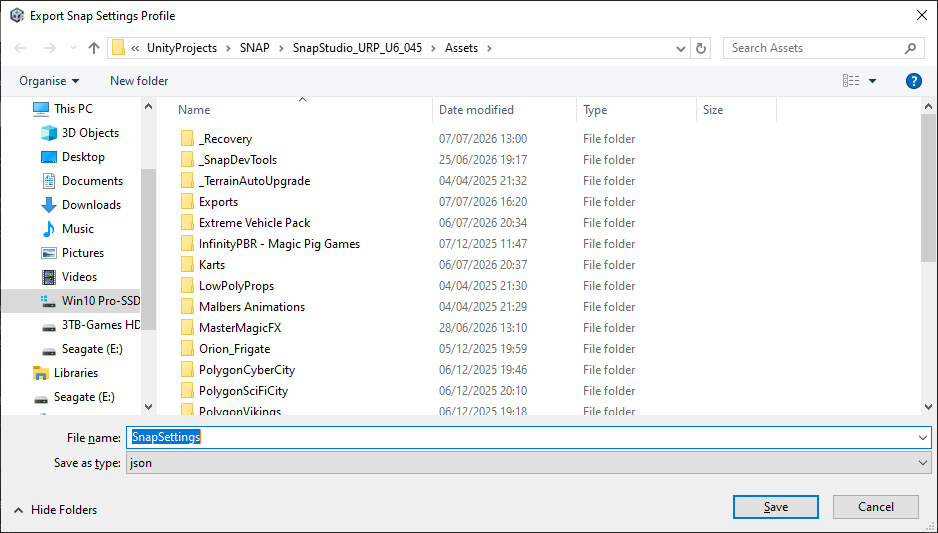
In the Settings Profile card, click Export…. Snap prompts for a save location and writes your current configuration as pretty-printed JSON (the default filename is SnapSettings.json).
Because it's plain JSON, you can commit it to version control, drop it in a shared drive, or diff two setups to see exactly what differs.
Importing a profile
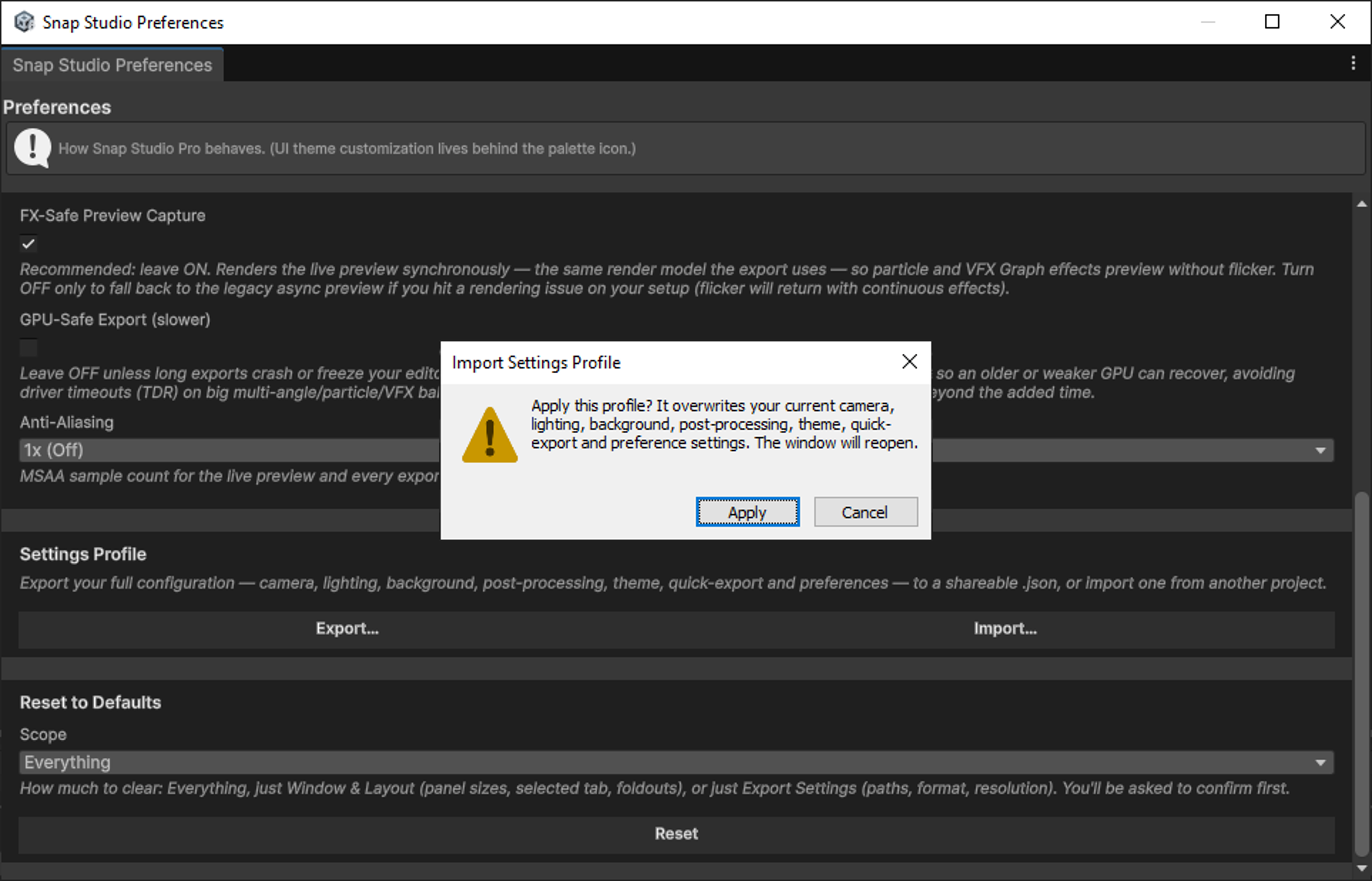
Click Import… and pick a profile file. Snap validates it first — an unreadable file, or one with a newer schema than this build supports, is rejected with a clear message and nothing changes.
If it's valid, you're asked to confirm, because importing overwrites your current camera, lighting, background, post-processing, theme, quick-export, and preference settings. On confirm, the main window closes and reopens so the preview reflects the imported setup.
Import replaces, it doesn't merge
There's no partial import — applying a profile writes every domain back at once. If you want to keep your current setup, export it first so you have a profile to restore to.
Sharing across projects and machines
Because a profile deliberately excludes machine-local state, the same file is portable:
- Onboarding a teammate — export your setup, commit
SnapSettings.jsonnext to the project, and they import it to match your studio look. - Restoring after a reset — export before you experiment; if a reset clears things, import to get back exactly where you were.
- Cross-pipeline caveat — everything but post-processing is pipeline-agnostic, so a profile shared between (say) a URP and an HDRP project still carries camera, lighting, background, theme, export, and preferences — only the volume blob is skipped where the pipelines differ.
Next steps
- The rest of the window this lives in: Preferences.
- Pipeline-specific behaviour behind the volume section: Render Pipeline Notes.
- Automating captures instead of configuration? Headless Capture API & Job Runner.