Render Pipeline Notes
Snap Studio Pro runs on all three of Unity's render pipelines — Built-in, URP, and HDRP — and picks the right capture path for whichever your project uses, automatically. For the most part you never think about it. But each pipeline has one or two specifics worth knowing, and one of them (URP alpha) is the single most common cause of a sprite exporting with a solid background when the preview looked perfect. This page covers all three.
You don't select the pipeline
Snap detects the active pipeline from your project's graphics settings — there is no pipeline dropdown to get wrong. If you switch your project's pipeline, Snap follows on the next capture.
How Snap detects and routes the pipeline
Snap reads Unity's active render-pipeline asset and classifies it:
- no render-pipeline asset assigned → Built-in
- a Universal render-pipeline asset → URP
- a High Definition render-pipeline asset → HDRP
That single detection drives everything downstream — the camera manager, lighting manager, volume/post-processing manager, and the preview capture path are all routed per pipeline behind the scenes. The result is that the same window and the same export buttons do the right thing on each pipeline without any per-pipeline setup from you.
URP — the alpha trap
This is the important one. Fresh URP projects frequently ship with post-process alpha stripped: either the Renderer's Alpha Processing is off, or the pipeline's Color Buffer Format has no alpha channel. When that's the case, a transparent-intent capture renders and reads back fully opaque — the live preview still looks correct, but the saved PNG has a solid background. It's the worst failure class Snap has, because it's invisible until you open the image in your game.
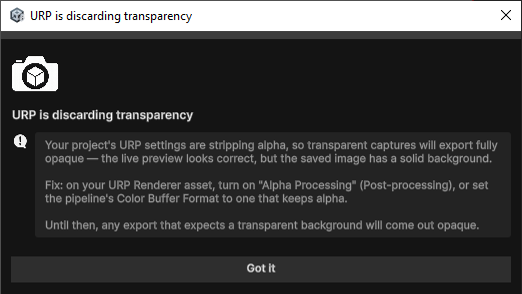
Snap guards against it. On the first genuinely transparent capture of a session, it inspects the result: if the pipeline is URP and the capture came back fully opaque despite a transparent clear, it warns once — a console breadcrumb plus a single dismissible modal titled "URP is discarding transparency." It never blocks a capture and never changes your render state; worst case is one dismissible nag per session.
The fix is in your URP asset, not in Snap
When you see the warning, on your URP Renderer asset turn on Alpha Processing (under Post-processing), or set the pipeline's Color Buffer Format to one that keeps alpha. Until you do, any export expecting a transparent background will come out opaque.
Headless runs log it, but can't pop a modal
Under -batchmode (the golden harness or the JSON capture API) there's no GUI, so the warning is a console breadcrumb only — but it's still emitted, so the trap shows up in your CI log.
HDRP — volume and exposure
HDRP scenes are governed by the volume system, and an HDRP camera with no exposure override renders black or blown-out. So on HDRP, Snap sets up its own global Volume in the preview scene and ensures it carries a fixed Exposure override, so your prefab is lit predictably rather than at the mercy of scene volumes. The volume is created, moved into the preview scene, and cleaned up for you — you don't wire it up by hand.
HDRP requires the HDRP packages to be present
The HDRP capture path is compiled behind Unity's HDRP define, so it's active only in a genuine HDRP project. On Unity 6, this is the standard HDRP setup — if HDRP is your project's active pipeline, Snap's HDRP path is in play.
Because HDRP post-processing is volume-based, a settings profile that carries an HDRP volume blob only re-applies it in another HDRP project — it's skipped on a URP or Built-in project, since the data is meaningless there.
Built-in RP
Built-in works and needs the least ceremony: it clears to transparent correctly (so the URP alpha trap doesn't apply), and it renders the preview immediately, so there's no FX-Safe Preview Capture toggle to think about — that toggle only appears on the scriptable pipelines. See Preferences.
Built-in still works, but Unity is winding it down
Unity has signalled that the Built-in Render Pipeline is on a deprecation path in favour of URP and HDRP. Snap continues to support Built-in fully today; if you're starting a new project and haven't committed to a pipeline, URP is the safer long-term target — just mind the alpha setting above.
Troubleshooting
My PNG is opaque but the preview showed transparency (URP)
The classic URP alpha trap. Turn on Alpha Processing on your URP Renderer, or switch the Color Buffer Format to one with alpha. See the URP section above.
The HDRP preview is black or washed out
HDRP needs an exposure override. Snap sets a fixed exposure on its own global volume; if a scene volume is fighting it, check for conflicting global volumes in your project.
There's no FX-Safe Preview Capture toggle in Preferences
Your project is on Built-in RP, which renders the preview synchronously already — there's nothing to toggle. It appears on URP and HDRP only.
Next steps
- The toggle mentioned here, and the rest of Snap's behaviour settings: Preferences.
- Carrying (pipeline-tagged) post-processing between projects: Settings Profiles.
- Start of the interactive path, with the same alpha note: Your First Sprite.