Preferences
The Preferences window is where Snap's behaviour lives — set-once, app-wide settings that aren't part of any single capture: hotkeys, preview and export performance, whether the window remembers your last session, and scoped reset-to-defaults. It's deliberately separate from the theme window, which only changes how Snap looks; Preferences changes how it behaves.
Nothing here is required to get a good export. These are the dials for tuning Snap to your machine and your habits once, then forgetting about them.
Opening it
Open Snap Studio Pro (Tools → Rev Gaming → Snap Studio Pro) and click the gear icon in the window's top-right corner (tooltip: Open Preferences). The first time it opens it sizes itself comfortably; after that Unity remembers whatever size you leave it at.
The window at a glance
Settings are grouped into themed cards down a scrollable window, each with inline help text:
| Card | What it holds |
|---|---|
| Workspace | Session restore toggle |
| Shortcuts | Enable Hotkeys |
| Preview & Performance | Live-preview and export performance/troubleshooting toggles |
| Settings Profile | Export / import a full settings profile |
| Reset to Defaults | Scoped reset |
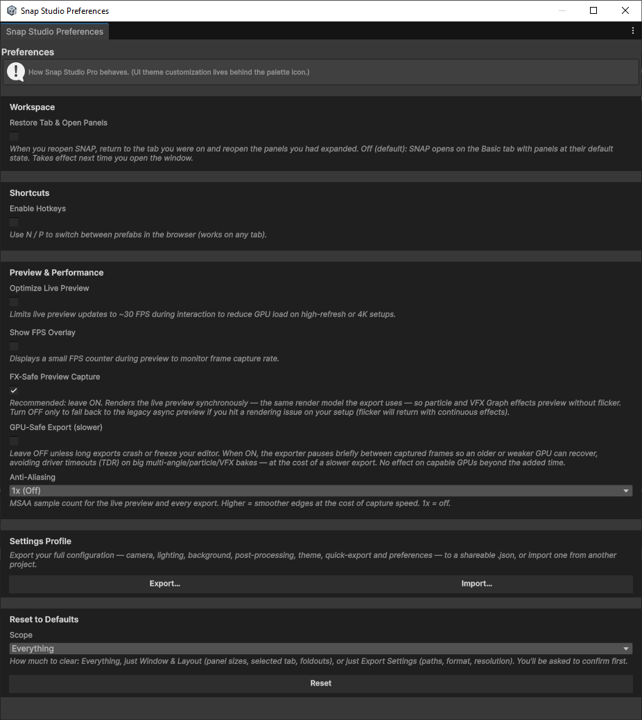
Workspace — session restore (opt-in)
Restore Tab & Open Panels is off by default. Left off, Snap opens on the Basic tab with panels at their default state every time — a clean, predictable start. Turn it on and Snap will, next time you open the window, return you to the tab you were on and reopen the panels you had expanded.
It takes effect on the next open
Session restore reads its state when the window opens, so toggling it doesn't change the current window — it applies the next time you launch Snap. This is the same tab/foldout state the Window & Layout reset scope clears.
Shortcuts
Enable Hotkeys (off by default) lets you move through the prefab browser from any tab with the keyboard — A / D step to the previous / next prefab and W / S move up / down a grid row (the default W A S D). Each key is rebindable: click it under Shortcuts, then press the key you want. Hotkeys are ignored while you're typing in a field, so they never eat a search keystroke.
Preview & Performance
App-wide preview and export dials — set-once settings that would clutter the beginner-facing Basic tab, so they live here instead:
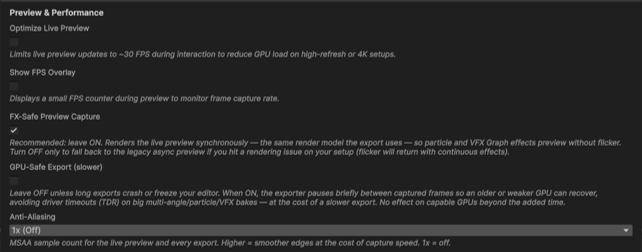
- Optimize Live Preview — caps live-preview updates to ~30 FPS during interaction to cut GPU load on high-refresh or 4K setups.
- Show FPS Overlay — a small FPS counter during preview, for monitoring the capture rate.
- FX-Safe Preview Capture — see below. Only appears on URP and HDRP.
- GPU-Safe Export (slower) — off by default; when on, the exporter pauses briefly between captured frames so an older or weaker GPU can recover, avoiding driver timeouts (TDR) on big multi-angle / particle / VFX bakes. Leave it off unless long exports crash or freeze your editor.
- Anti-Aliasing — MSAA sample count (
1x (Off),2x,4x,8x) for the live preview and every export. Higher is smoother at the cost of capture speed.
FX-Safe Preview Capture
On URP and HDRP, FX-Safe Preview Capture is the recommended default — leave it on. It renders the live preview synchronously, the same render model the export uses, so particle and VFX Graph effects preview without flicker. Turn it off only to fall back to the legacy async preview if you hit a rendering issue on your setup — and expect flicker to return with continuous effects.
Built-in has nothing to toggle here
The FX-safe path only exists for the scriptable pipelines. Built-in RP already renders the preview immediately, so the toggle simply doesn't appear when your project is on Built-in.
Settings Profile
The Export… / Import… buttons snapshot your whole configuration to a shareable .json and read one back. This is covered in full on its own page — see Settings Profiles.
Reset to Defaults
Pick a Scope, then Reset (you'll be asked to confirm — a reset can't be undone). The scopes:
- Everything — every Snap setting: export paths, layout, camera, lighting, and all preferences.
- Window & Layout — just panel sizes, the selected tab, and foldout states. Export and render settings are kept.
- Export Settings — just folder paths, format, resolution, and batch options.
The window closes and reopens to load the fresh defaults.
Reset is per-scope but permanent
Each scope is a clean wipe of that area — there's no undo. If you might want your current setup back, export a settings profile first, then reset.

Next steps
- Snapshot or share this configuration: Settings Profiles.
- What the FX-safe toggle is actually doing under each pipeline: Render Pipeline Notes.
- Back to the automation surface: Headless Capture API & Job Runner.