Prefab Metadata
When your project has hundreds of prefabs, finding the ones you want to capture gets slow. Prefab Metadata tags each prefab with a type — Character, Environment, Props, and so on — so the prefab browser can filter by type instead of making you scroll. It's lightweight organisation, not a heavy asset-management system: a small marker on a prefab plus a manager window to apply it in bulk.
Optional, and behind the scenes
You never need metadata to capture — the browser works without it. This is for people with big libraries who want the Prefab Type filter to actually do something. If you've only got a handful of prefabs, skip it.
What it powers
The prefab browser (bottom of the Basic tab) has a Prefab Type filter. With metadata applied, that filter narrows the grid to just Characters, just Environment, just Props — whatever the prefab is tagged as. Without metadata, everything shows as untyped.
So the workflow is: tag your library once, then filter it forever after.
The Prefab Metadata Manager
Open it from the menu bar:
Tools → Rev Gaming → Prefab Metadata Manager
This window applies and manages metadata across your whole project in bulk, rather than one prefab at a time.
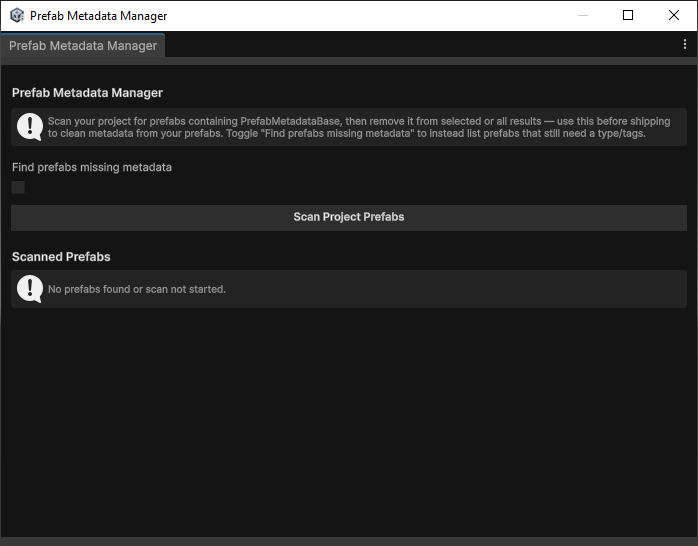
Scanning
- Scan Project Prefabs walks your project and lists what it finds, so you can see the whole library and its current metadata state.
- Scan for Missing Metadata / Find prefabs missing metadata narrows that to just the prefabs that aren't tagged yet — your to-do list.
- Stop Scan cancels a scan in progress on a large project.
Bulk actions
Under Bulk Actions you can apply changes to many prefabs at once:
- Remove Metadata / Remove All strips metadata from selected prefabs.
- Remove Script from Selected Prefabs / Remove Script from All Prefabs removes the metadata component entirely — useful if you want to fully clean the metadata back out of your project.
Tag the gaps, then filter
The fast path on an existing project: Scan for Missing Metadata to find the untagged prefabs, tag them by type, then go to the prefab browser and use the Prefab Type filter. From then on your library is filterable.
Removing it cleanly
Because metadata is a small component on the prefab, it leaves no trace once removed. If you decide you don't want it — or you're handing prefabs to someone who doesn't use Snap — the Remove Script from All Prefabs bulk action takes it back out project-wide, leaving your prefabs exactly as they were.
Next steps
- Filtering the browser you just organised — the Prefab Type filter lives on the Basic tab browser.
- Capturing a whole tagged category at once — Batch Exporting.
- A tour of where everything lives — Tour of the Window.