Headless Capture API & Job Runner
Everything you do by hand in the Snap window — load a prefab, frame it, pick a resolution, export — has a headless twin. Describe the captures in a JSON job file and Snap runs them with no window open: from a menu item, from your own editor scripts, or from a -batchmode Unity invocation in CI. Same capture engine, same output, none of the clicking.
Prerequisites
Snap Studio Pro imported, and the prefabs you want to capture living under Assets/. The API resolves prefabs by asset path (e.g. Assets/Props/Barrel.prefab), so it only sees what Unity has imported.
Three ways to run
The same job file drives all three — pick the one that fits how you're working:
- Menu item — no scripting.
Tools → Rev Gaming → Capture API → Run Job File..., pick a.json, and a summary dialog reports what ran. - Your editor script — call
SnapBatchRunner.RunJobFile(path)(or a singleSnapCapture.RunStatic/RunAnimation/RunParticle/RunVfx) and read the report back. - Command line / CI —
-executeMethod ...SnapBatchRunner.RunFromCommandLine -snapJob <path>, which exits non-zero if any job fails.
The whole API runs synchronously — no editor coroutine or update pump — so it completes cleanly under -batchmode -quit.

The job file
A job file is a single JSON object with a defaults block and up to four arrays of jobs — one array per capture type:
| Array | Captures | Backed by |
|---|---|---|
staticJobs | Single / batch still sprites at any angles | SnapCapture.RunStatic |
animationJobs | Animation clips → frame sequences, sheets, GIFs | SnapCapture.RunAnimation |
particleJobs | Deterministic particle bakes | SnapCapture.RunParticle |
vfxJobs | VFX Graph bakes (requires the SNAP_SUPPORTS_VFX build define) | SnapCapture.RunVfx |
It's JsonUtility, so the schema is plain
Snap parses job files with Unity's JsonUtility. That means public fields, nested [Serializable] types, and homogeneous arrays only — no dictionaries, no polymorphism. Unknown keys are ignored, and any field you omit falls back to its default. Every array is optional; a file with just staticJobs is perfectly valid.
Defaults
defaults sets file-wide values every job inherits unless it overrides them. The real field names:
| Field | Default | Meaning |
|---|---|---|
outputDirectory | "Assets/SnapExports" | Where images land (keep it under Assets/) |
format | "PNG" | PNG, TGA, EXR, or JPG |
width / height | 512 / 512 | Capture pixel size |
transparent | true | true → transparent background; false → the colour below |
backgroundColor | "#1E4C52" | Hex solid background, used only when transparent is false |
Per-job overrides use a sentinel-free rule: a non-empty string or a non-zero number on a job replaces the default; leave a field out (or 0 / "") to inherit. So a job that only sets width and height still picks up the file's format, output folder, and background.
Static jobs
A staticJob captures a set of prefabs at a set of angles. Key fields:
prefabs— an array of prefab asset paths.prefabFolder— optionally, a project folder scanned recursively for prefabs, added toprefabs.angles— an array of{ "yaw", "pitch", "roll" }rotations in degrees. Omit it (or leave it empty) for a single front view(0,0,0).separateByPrefab/separateByAngle— put each prefab / each angle in its own subfolder.fitCameraToPrefab— auto-fit the camera to bounds (defaultstrue).exportNormalMap/flatAlbedo— extra passes for normal maps / flat albedo.
A complete example
{
  "defaults": {
    "outputDirectory": "Assets/SnapExports/Icons",
    "format": "PNG",
    "width": 512,
    "height": 512,
    "transparent": true,
    "backgroundColor": "#1E4C52"
  },
  "staticJobs": [
    {
      "prefabs": [
        "Assets/Props/Barrel.prefab",
        "Assets/Props/Crate.prefab"
      ],
      "angles": [
        { "yaw": 0,  "pitch": 0,  "roll": 0 },
        { "yaw": 45, "pitch": 15, "roll": 0 }
      ],
      "separateByPrefab": true,
      "separateByAngle": false,
      "fitCameraToPrefab": true
    },
    {
      "prefabFolder": "Assets/Characters",
      "outputDirectory": "Assets/SnapExports/Characters",
      "width": 1024,
      "height": 1024
    }
  ],
  "animationJobs": [
    {
      "prefab": "Assets/Characters/Hero.prefab",
      "clips": ["Run", "Idle"],
      "fps": 24,
      "outputDirectory": "Assets/SnapExports/Hero",
      "spriteSheet": true,
      "gif": true,
      "framesPerRow": 8
    }
  ],
  "particleJobs": [
    {
      "prefab": "Assets/FX/Explosion.prefab",
      "outputDirectory": "Assets/SnapExports/FX",
      "duration": 2,
      "fps": 30,
      "spriteSheet": true
    }
  ]
}
The first static job captures two props at two angles into per-prefab folders; the second scans a whole Assets/Characters folder at 1024×1024. The animation job renders the Hero's Run and Idle clips at 24 fps with a sheet and a GIF (omit clips to capture every clip on the prefab); the particle job bakes a two-second explosion.
Single, directional, and all-angle
- Single — a static job with no
angles(or one(0,0,0)entry), or a single prefab. That's the headless equivalent of one Quick Export. - Multi-angle turntable — a static job's
anglesarray is a straight list ofyaw/pitch/rollrotations. Ten entries → ten captures per prefab. - Directional facings — animation, particle, and VFX jobs take a
directionalblock instead, matching the interactive Directional Capture panel: the camera orbits the subject. Setpresetto"SideScroll"(2 facings),"TopDown_4","TopDown_8", or"TopDown_16"; SideScroll also takessideScrollFacing("FrontToBack"or"LeftToRight"), and top-down presets taketopDownPitch. Output lands inAngle_###subfolders — the same layout as the interactive export. Omitdirectionalfor a single front-angle capture — but note the preset names are exact ("TopDown_8", not"TopDown8"): a name Snap doesn't recognise fails the job and lists the valid ones, rather than falling back to a front angle you didn't ask for.
Turntable angles vs. directional facings are different models
A static job's angles list rotates the prefab (a turntable). A directional block orbits the camera around a stationary subject (facings), which is what a directional sprite set needs. Use angles for arbitrary still-image rotations; use directional for character-style 4/8/16-way sets.
Running from a script
SnapBatchRunner.RunJobFile is safe to call from your own editor code — it never exits the editor and returns a SnapRunReport:
using RevGaming.SnapStudioPro.Api;

SnapRunReport report = SnapBatchRunner.RunJobFile("Assets/snap-jobs/icons.json");

Debug.Log($"{report.JobsSucceeded}/{report.JobsRun} ok, " +
          $"{report.ImagesWritten} images, {report.JobsFailed} failed.");
For finer control, call a single entry point directly — each returns a SnapJobResult with Success, Images, OutputDirectory, and Error:
var job = new SnapStaticJob
{
    prefabs = new[] { "Assets/Props/Barrel.prefab" },
    width = 1024,
    height = 1024
};

SnapJobResult result = SnapCapture.RunStatic(job);
Success and Images are measured, not planned. Images counts the image files that actually reached disk — captured frames plus their normal maps when you ask for those; sprite sheets and GIFs are assembled from the frames and aren't counted. A job reports failure, with the reason in Error, when it wrote nothing, wrote fewer files than it planned, hit a write error, or listed a prefabs path that doesn't resolve. That last one fails the job before any capture runs rather than quietly exporting the prefabs that did resolve.
FX jobs are judged differently
A particle or VFX bake decides its own frame count as it runs — warm-up, trimming and the effect's lifetime all move it — so there's no planned total to check against. Those jobs report the files they wrote, and fail only if they wrote nothing or a write failed.
Running from the command line (CI)
RunFromCommandLine reads -snapJob <path>, runs it, and — in batchmode — exits 0 on success, 1 on a job failure, 2 on a missing argument:
Unity -batchmode -quit -projectPath <proj> \
      -executeMethod RevGaming.SnapStudioPro.Api.SnapBatchRunner.RunFromCommandLine \
      -snapJob Assets/snap-jobs/icons.json
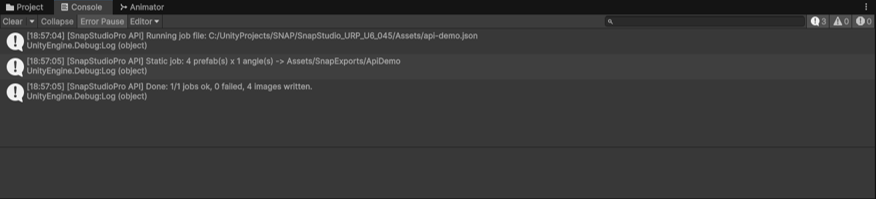
Batchmode has no diagnostics window, so per-job detail goes straight to the Unity console/log — that output is the report.
Troubleshooting
\"No prefabs resolved from the job\"
A prefabs path is wrong, or prefabFolder isn't a real project folder. Paths are project-relative asset paths (Assets/…/Thing.prefab) and are only resolvable for prefabs Unity has imported.
The exported PNGs came out opaque
On URP, the project may be stripping alpha. Snap logs the trap even in headless runs (there's no modal in batchmode). See Render Pipeline Notes.
\"VFX capture requires the SNAP_SUPPORTS_VFX build define\"
vfxJobs only run in a build compiled with SNAP_SUPPORTS_VFX. Without it, those jobs report a clear failure and the rest of the file still runs.
A job field seems to be ignored
Remember the parser is JsonUtility — unknown keys are silently dropped, and omitted fields inherit the default. Check the field name against the tables above.
Next steps
- Want the interactive equivalent of a static job? Batch Export.
- Need engine-ready output, not loose images? Game-Ready Output.
- Carrying a look between projects instead of captures? Settings Profiles.